Appointment diary for estate agencies
Every appointment your agency has, without the double-bookings and the missed viewings.
Your agents, your clients and your properties in one shared diary. Automated appointment reminders go out by email, and each client's answer shows on the diary for the whole office to see.
Free during the beta · No card required
What it does for your agency
-
One shared diary
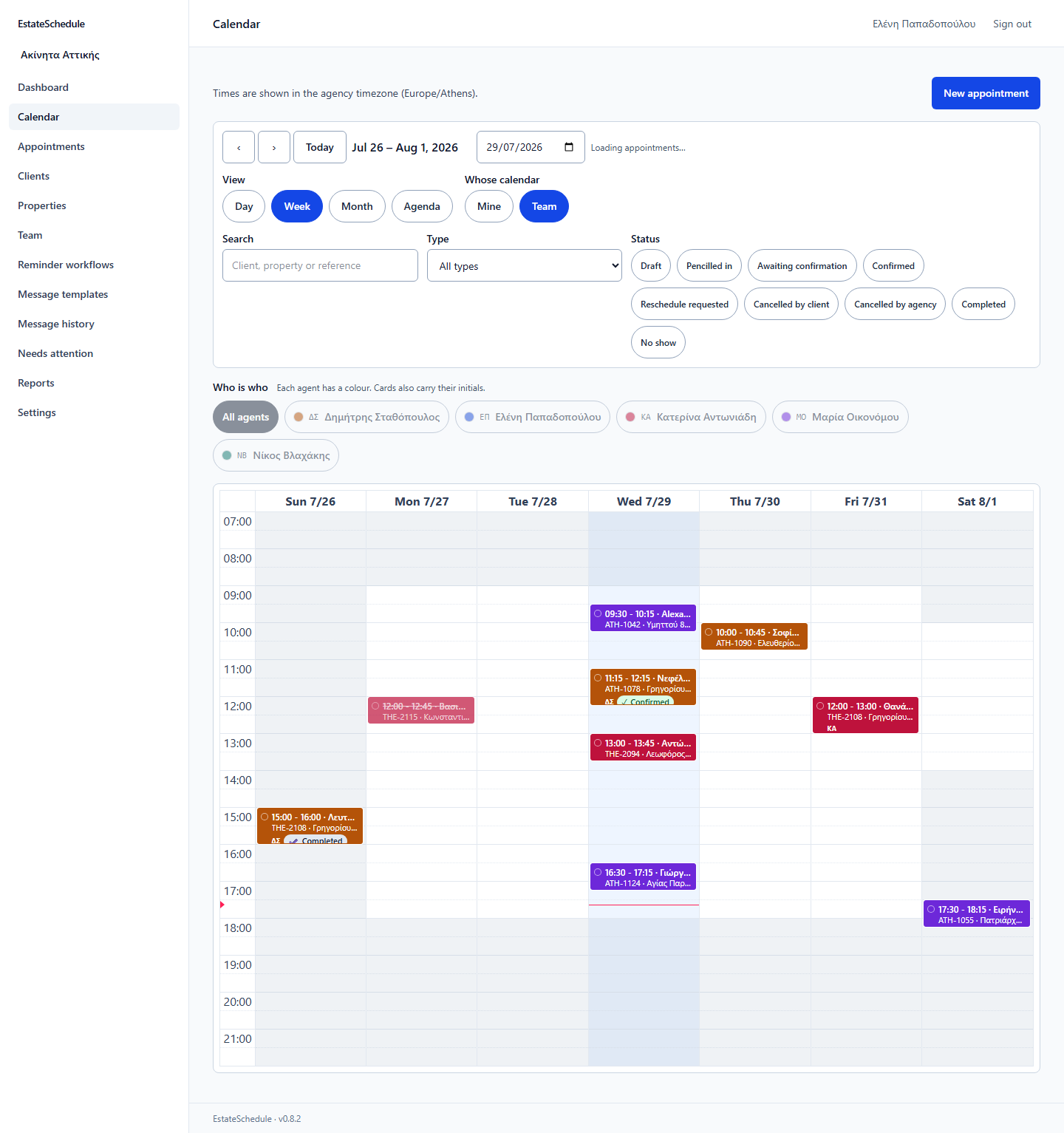
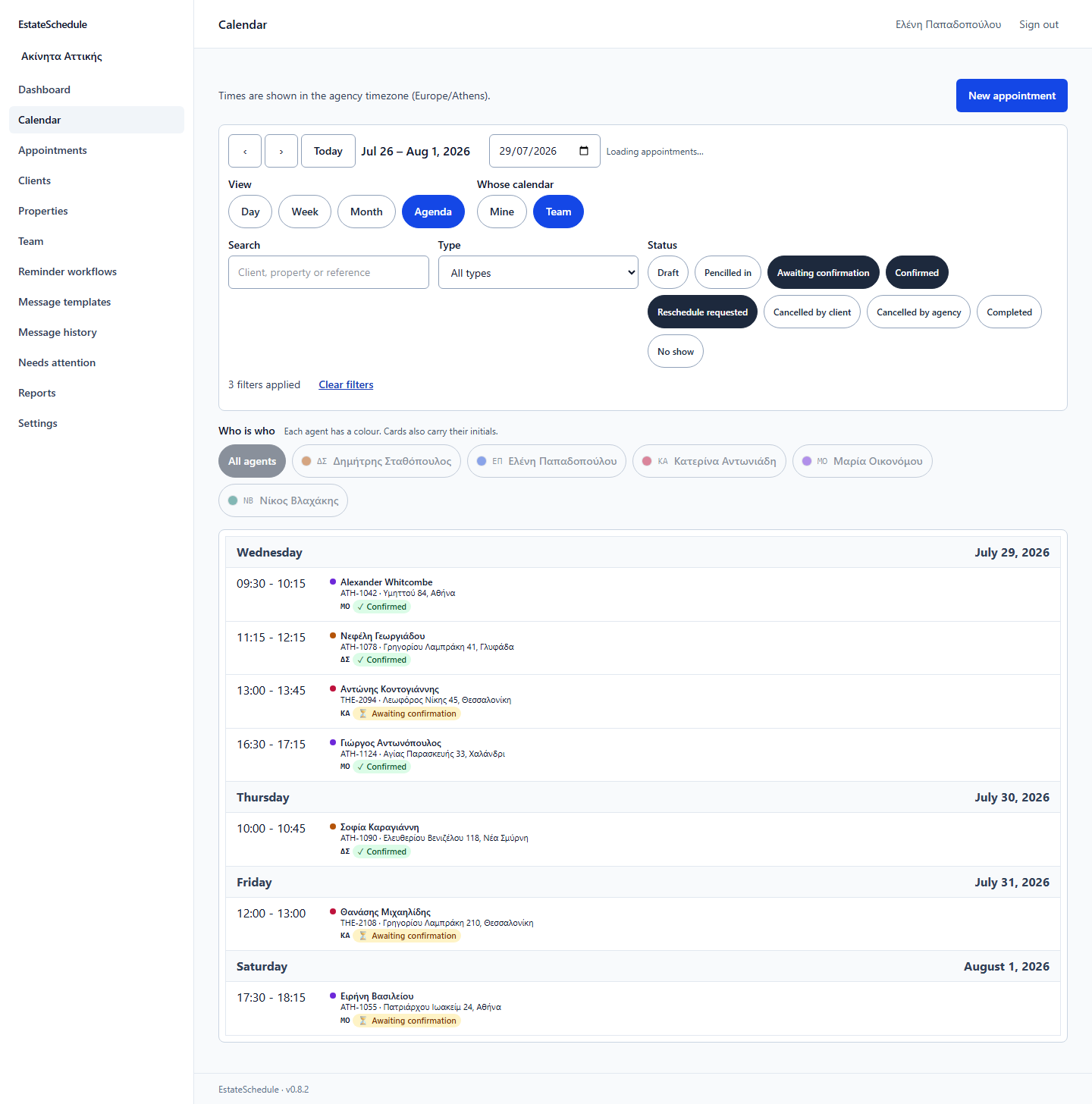
Day, week, month and agenda views, for the whole agency. Every appointment shows the client, the agent and the property reference.
-
Automated client reminders
You decide once, per appointment type, how much notice the client gets. After that the reminder goes out by email on time, without anybody having to remember it.
-
Double-booking protection
The check runs in the booking panel, before you save. Anyone with the right permission can book over a clash by giving a reason, which goes on the record.
-
A schedule for each agent
Filter the diary to one agent and you see only their appointments. Every agent has their own colour, with their initials beside each entry.
How it works
Three steps. You take the first, the second happens by itself, and the client takes the third.
-
You book the appointment
Choose the client, the property, the agent and the time. If that time clashes with something already in the diary, you are told before you save rather than after.
-
The reminder sends itself
The email goes out at the time you set for that type of appointment. Move the appointment and the reminders move with it: the old ones are withdrawn and new ones scheduled.
-
The answer appears on the diary
The client opens the link and tells you whether they will be there, cannot make it, or would like a different time. Their answer shows on the diary, to anyone looking at it.
See the product
Screenshots of the product itself, using demo agency data. The week view is the picture at the top of this page.
-
Day view
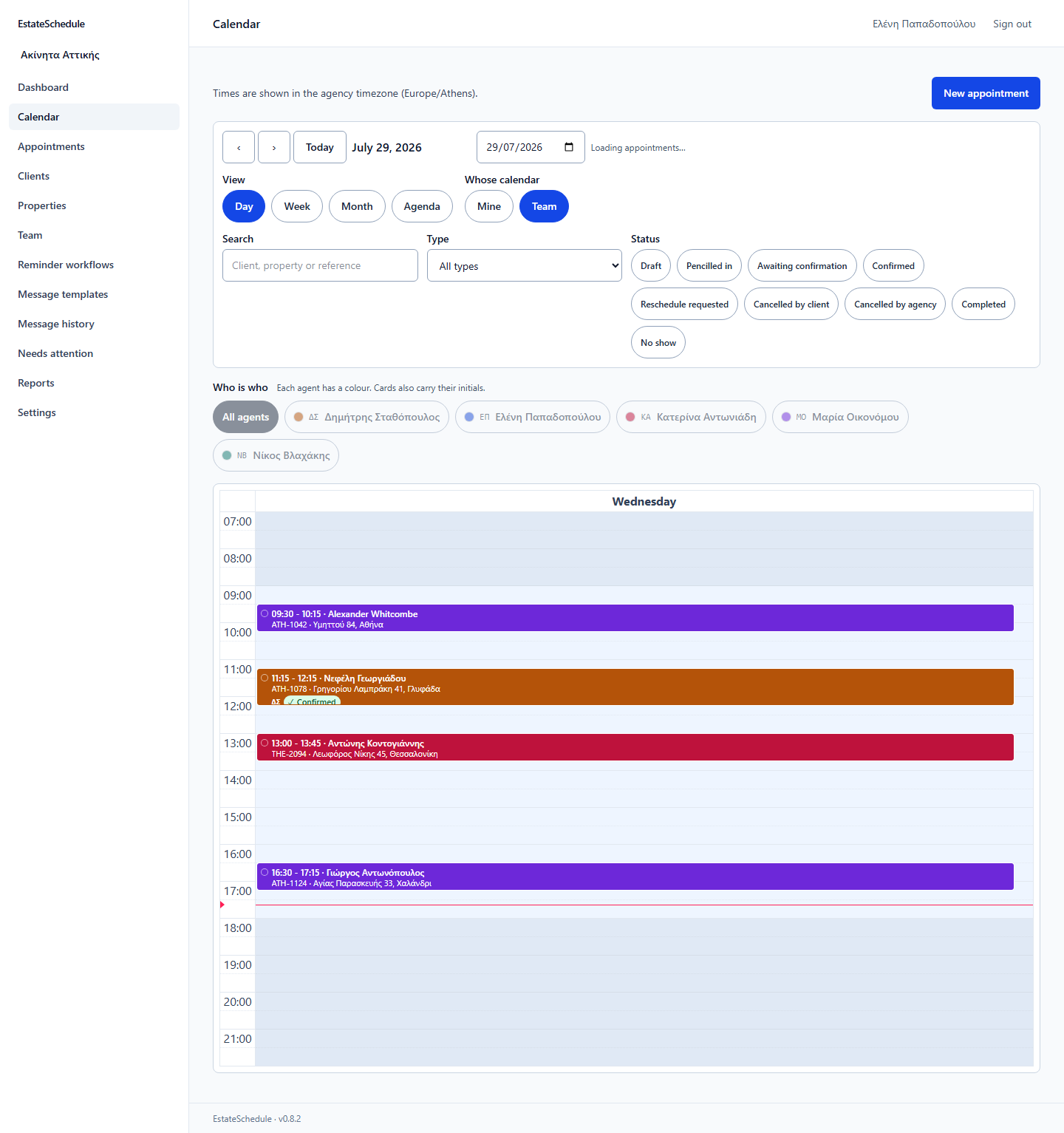
The agency day, hour by hour. -
Month view
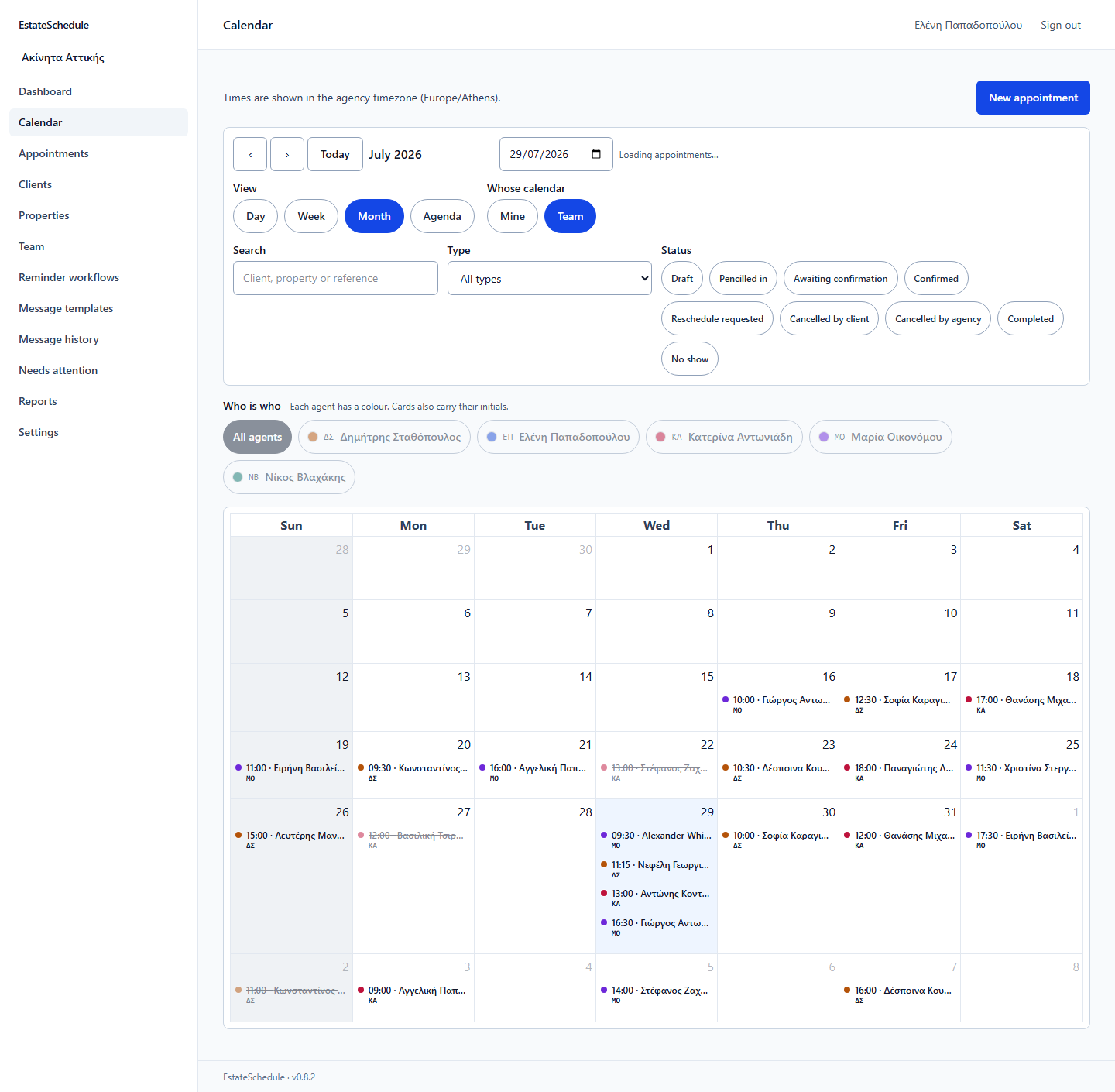
A whole month on one screen. -
Filter by agent
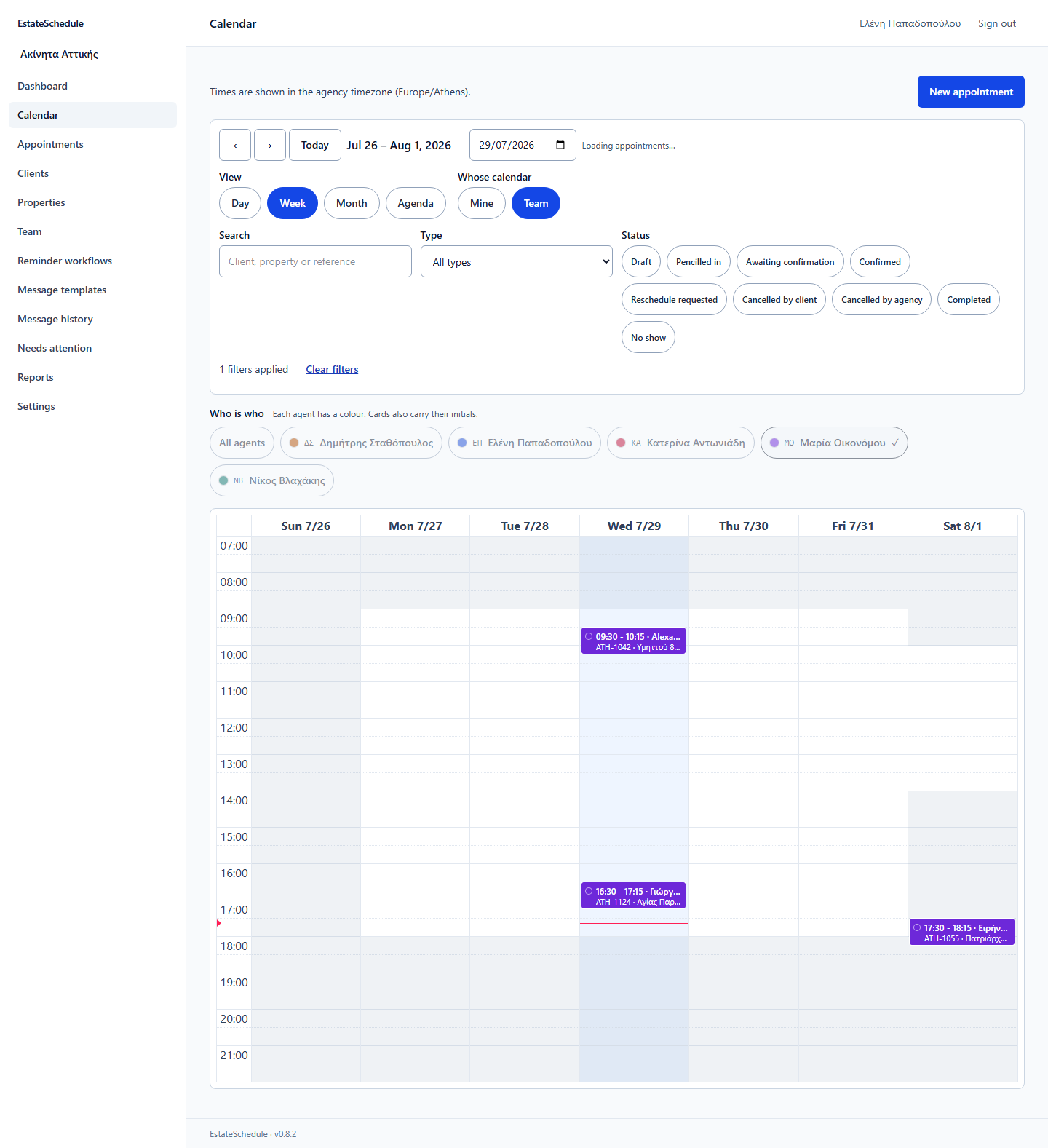
One agent's week, inside the agency diary. -
Booking an appointment
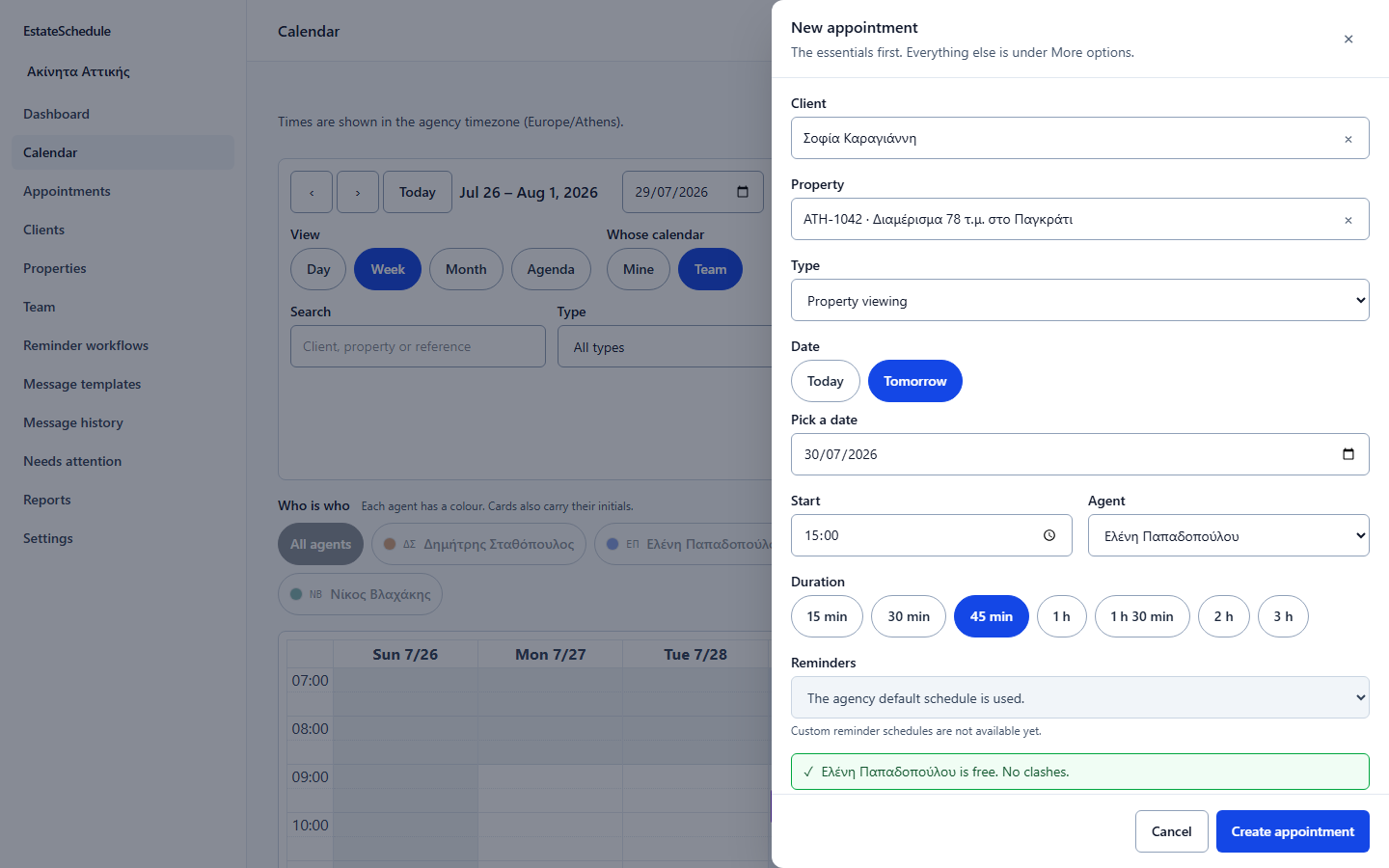
The clash appears before you save. -
Confirmation status
The client's answer, on the appointment itself. -
Client and property
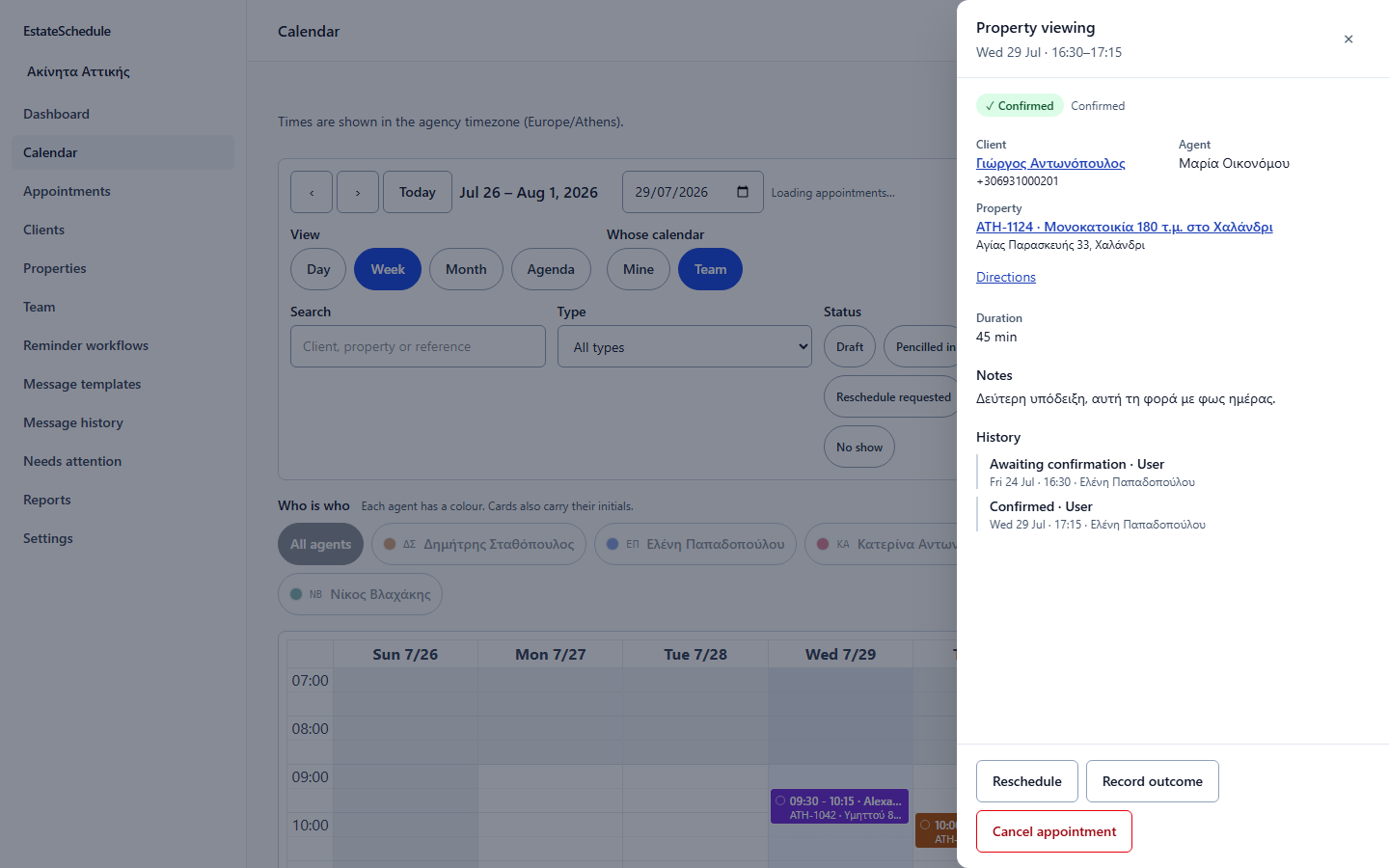
Every appointment carries its client and its property.
Your team
Every agent has their own schedule inside the one shared diary.
-
A colour and initials for each agent
Each agent has their own colour on the diary, with their initials beside it. Filter to one agent and the diary shows only their appointments.
-
Five roles, with different permissions
Owner, administrator, manager, agent and viewer. You decide which role each colleague holds and what they are able to change.
-
Clash detection before you save
Three things are checked: the same agent double-booked, two agents at the same property at the same time, and the gap you want either side of a viewing, set as a number of minutes by your agency. Anyone with the right permission can book over a clash by giving a reason, and that reason is recorded.
Reminders and channels
What the product sends today, and what is on the roadmap.
Available now
- Reminders by email
- Set the notice period once for each type of appointment. From then on the reminders go out at the right time.
- From your agency's own address
- Once your agency has entered its mail settings, messages go out from your own address. Until then they go out from the platform's mailbox.
- Changes and cancellations
- Move an appointment and the old reminders are withdrawn, with new ones scheduled for the new time. Cancel it and anything still pending stops.
- The client's reply
- The client opens the link with no account, no app and no password. They confirm, tell you they cannot make it, or ask for a different time, and they can add the appointment to their own calendar. Asking for a different time does not move the appointment: an agent books the new slot.
On the roadmap
- SMS
Neither channel sends today.
Data and access control
Who sees what, what the client has agreed to, and who changed what.
-
Role-based access, separated by agency
Five roles with different permissions. One agency does not see another agency's records, and the separation is applied by the application on every query it makes.
-
Consent, recorded per channel
Consent is recorded separately for each channel, with the date and the member of staff who recorded it. Your staff can withdraw it, and a do-not-contact list overrides consent.
-
Audit log
Who changed what is written down. Entries are added to the log and are not edited afterwards.
-
Language and time zone
Each colleague works in Greek or in English, whichever they choose. The client's message follows the language your agency set for them, and every appointment keeps the time zone it was booked in, Athens or Nicosia.
-
Summary reports
Seven summary reports on the agency's work. An owner or an administrator can download them as a CSV file.
Free access during the beta
The product is in beta, and there is no charge for using it.
- No card required.
- It is free to use for as long as the beta lasts.
- Pricing will be published before it takes effect.
- Agencies using the product during the beta will hear from us in good time.
What people ask first
Do I have to move all my clients over before I can start?
No. Start with the appointments in front of you and only the clients they involve, adding each one as you need them. If you would rather bring the whole book across, an owner can upload it as a spreadsheet from the "Your records" screen — one column has to be called first_name and the rest are optional. Consent to message a client is the one thing a spreadsheet cannot carry, so those clients arrive with none and you record it as you speak to them.
Can I carry on using my own calendar?
The agency's schedule lives in the shared diary. An agent cannot push an appointment out of the product and into their own personal calendar: there is no Google Calendar sync and nothing to subscribe to. The client can, though. From the link in their reminder they add the appointment to their own calendar, either as a calendar file or through an add-to-Google-Calendar link.
What does each colleague see?
There are five roles with different permissions, and you decide which one each colleague holds. An agent works on their own appointments and sees the shared diary; an owner and an administrator see the whole agency. One agency's records are not visible to another.
Which reminder channels can I use?
Email, today. You set the notice period for each type of appointment, and messages go out from your agency's address once you have entered its mail settings. The other channels are on the roadmap, in the "Reminders and channels" section above.
Can I get my data out?
Yes, and without asking us. An owner downloads the agency's own records as spreadsheet files — clients, appointments and the consent records — from the "Your records" screen. The seven summary reports download separately, for an owner or an administrator. There is nothing automatic: each file is a download somebody presses, not a sync.
Is there anything to install?
No. The product opens in a browser, on a computer and on a phone. Your client needs neither an account nor an app: they open the link in the reminder and answer it.
Is it any use to an agent working on their own?
Yes. The reminders and the client replies work the same way with one agent as with six. Clash detection keeps you off two appointments at the same hour, and when you take colleagues on, the same diary takes them too.
How do I add my colleagues?
You invite them by email address and choose a role for each one. Once they accept the invitation they appear on the diary in their own colour, and you can put appointments in their name.
Put your agency's next week into one diary.
Create your agency, add your team, and enter the appointments you already have coming up.
Already have an account? Sign in